How-To Guides
How to Organize Your Digital Files Efficiently
Organize digital files efficiently with practical strategies for naming, folder structure, and syncing. Find out how routine file audits and visual cues improve daily productivity and peace of mind.
Advertisement
Stacks of digital files rarely stay neat without a little effort. Even if you don’t notice at first, clutter piles up until it feels impossible to find a photo or document. Discovering better ways to organize digital files means daily tasks move faster, and stress around lost files disappears.
With so many devices and file types, everything can scatter unless you apply careful rules. Skillfully managed digital spaces lift productivity, speed up searches, and keep your work or hobbies frustration-free. You don’t need fancy tools—just a plan.
If you’re ready to stop digging through unnamed folders, read on. This guide will help you organize digital files with straightforward strategies for lasting clarity across your phone, laptop, or cloud storage.
Renaming Routines: Clear Names Save You Time
Solid file names turn a random document into something you instantly recognize. Start with detailed naming conventions every time you create or move a file.
Labeling documents directly helps you organize digital files without extra searching. Replace generic names like “IMG_0312” or “Document1” with precise details, such as project, date, and content type.
Adding Date and Description for Every File
Typing each file’s creation date at the start of its name instantly sorts things. For example, write “2024-06-01-Family-Photos” instead of just “Vacation.” Use four-digit years so everything lines up.
If you snap dozens of photos in one week, detail what’s inside. Label photos “2024-06-10-Sam-Birthday-Party” or “2024-06-12-Work-Report-PDF.” Later, even years from now, you know what’s there.
Project files also stay tidy this way. When you share, people spot the subject and time right away, so there’s no back-and-forth about which one is the latest draft.
Batch Renaming for Quick Organization
When cleaning up a whole folder, highlight everything, right-click, and try your system’s batch rename tool. On a Mac, select all items and choose “Rename X Items.”
Windows lets you hit F2 after selecting multiple files, then enter one base name—numbers will automatically add to each file so you still see the sequence.
Saving time here helps organize digital files by cutting tedious repetitive typing, so you can quickly standardize every spring cleaning session or after importing a batch of documents.
| Current Name | New Name Example | Tool to Use | What To Do Next |
|---|---|---|---|
| IMG_0312.JPG | 2023-07-15-Family-Picnic | Finder/Explorer | Apply to all similar files this month |
| Document1.docx | 2024-03-02-Finance-Report | Batch rename tool | Sort all reports by year |
| Scan.pdf | 2024-04-18-Passport-Scan | Edit manually | Create dedicated “ID” folder |
| Resume.pdf | 2023-12-01-Jane-Resume | Auto-renaming app | Add to “Applications” folder |
| Notes.txt | 2024-05-11-Meeting-Notes | Bulk edit | Archive last year’s notes |
Folder Structures: Create Order for Every Project
Set up main folders for broad categories, then drill down by task or project. Each layer improves how you organize digital files and helps future-you instantly spot what you need.
Breaking up huge, messy folders into clear categories means faster navigation and no confusion. Choose names that match mental shortcuts you’d actually use.
Folder Hierarchy that Reflects Real Life
Use top-level folders for “Work,” “Personal,” “Photos,” and “Finance.” Inside, break them into meaningful dates, project types, or recipients. If you print each folder’s map, it should make sense instantly.
For photos, try “Photos > 2024 > June > Sam’s Birthday.” For work, sort by client or project name, then by year. This keeps every “2022 Project” away from current work at a glance.
- Build main folders with tasks you do at least monthly, so you never wonder “Where should I put this file?”
- Break folders down by dates or milestones to keep things chronological, eliminating random sprawl.
- Keep a special folder named “INBOX” or “To Sort” for new downloads or quick saves, so you don’t break your structure with impulsive actions.
- Name folders in the same style as file names—short, detailed, no whitespace—so searches give better results.
- Review folder structure on your birthday or another recurring date, and archive or delete older folders you never revisit.
Creating consistent folder habits lets you spot incomplete projects or forgotten downloads—making routine cleanup feel more rewarding and less like a scavenger hunt.
Building Project-Specific Subfolders
Within any main folder, use subfolders for “Drafts,” “Finals,” “Resources,” and “Archive.” This keeps all stages of work visible, so you always know which versions matter right now.
Mental habits form when you stick to these subfolder names. When exporting documents, send final versions to “Finals” and rough drafts to “Drafts,” so mistakes are easy to avoid.
- Place “Archive” as the last subfolder for outdated files—out of the way but accessible.
- Create a “Resources” folder for reference PDFs or design assets, keeping current work and inspiration separate.
- Save time by duplicating this exact structure for each new project or client, so no guessing is needed when adding files.
- Back up only your top-level folders to avoid confusion or redundancy in cloud services.
- Store template folders outside workspaces, so you always start new projects from a fresh, organized base.
This structure keeps every project’s workflow clean, prevents version confusion, and anchors your organize digital files routines in muscle memory.
Consistent Sorting: Use Rules to Beat Clutter
Sorting files as soon as you touch them makes organizing digital files automatic. Set simple rules and let your brain and software share the work.
Without rules, files pool in chaotic “Downloads” or “Desktop” folders. By acting every time, you avoid the big cleanup nightmare that discourages digital order.
Automating Daily File Sorting
Use built-in automation tools—like “Smart Folders” on Mac or scripts on Windows—to move files based on names or dates. For example, action: move all PDFs from “Downloads” dated this week to the “Finance” folder.
Set calendar reminders for weekly review. Even two minutes moving files by hand acclimates you to your own rules. Repeat the wording: “Sort, move, archive—done.”
Pair automations with morning or evening routine habits. Sorting digital files at the same time daily helps you build positive digital hygiene, just like setting out tomorrow’s work clothes.
Manual Sorting as a Mindful Routine
If automation feels overwhelming, go slow. Each time you download or save a file, pause and ask, “Where will I look for this later?”
When updating files, rename and move versions, so “Final” documents replace drafts. This mindful review prevents confusion about which file is ready to share or submit.
When friends or coworkers hand you documents, take half a minute to move them to the right folder structure before you forget. Doing this keeps your organize digital files practice intact.
Visualizing with Icons and Color: Make Files Stand Out
Using colors and icons in file management apps gives quick visual feedback. File icons turn into memory cues so you can organize digital files at a glance rather than reading every name.
Drag colored labels onto folders (“Red” for urgent, “Green” for projects complete) so your eyes spot priorities faster. That little burst of color translates into smoother workflows every single week.
- Assign blue to folders you review daily, so your eyes drift there—and the rest fade away unless needed.
- Make important documents instantly recognizable by setting a star or pin as well as a color.
- Reserve yellow tags for upcoming deadlines. Scan your screen every Monday and spot what needs attention that week.
- Use custom icons for personal vs. professional files, so you don’t confuse them even if folder names are similar.
- Update colors or icons when a project’s status changes. For example, move from red to green once something gets delivered or finalized.
This visual system helps you feel more in control—every file gets a place, and your screen looks approachable instead of overwhelming. That’s genuine peace of mind.
Regular Audits: Build a Habit to Prevent Future Mess
Every time you clean up files, you reinforce better habits. Routine audits stop digital clutter before it spirals—think of it as spring cleaning for your screen.
Set a recurring date, like the first Sunday each month, to review and organize digital files. You’ll always know what’s in each folder, and old junk never overstays its welcome.
A Checklist for a Quick File Audit
Open your “Downloads” and “Desktop” folders. Toss anything you didn’t touch this month. If you didn’t use it, you probably don’t need it.
Archive complete projects and move receipts or forms over six months old into “Archive” folders. It keeps your active lists clear for new work.
Double-check shared folders on cloud platforms. If you see someone else’s project you finished months ago, remove yourself to keep current work front and center.
Using Analytics and Search History
Look into your file explorer’s “Recent” or “Frequent” stats. These lists show where you spend time—match your folder or color-coding system to these patterns for natural organization.
If you find duplicate files, delete or merge them right away. This stops accidental overwriting and speeds up every organize digital files effort from now on.
Analyze search terms you use repeatedly. If you always type “Invoices” in the search box, create a shortcut folder or tag, so daily organization gets faster and more ergonomic.
Maintaining Sync Across Devices for Seamless Access
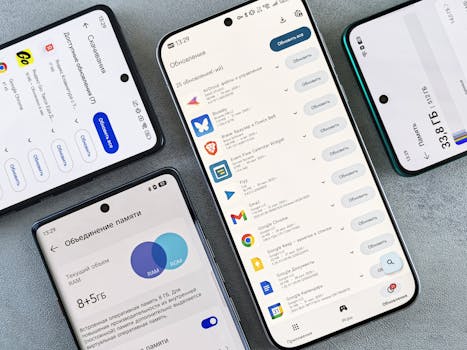
Syncing files between devices means you organize digital files once, then access them anywhere. This creates huge time savings and eliminates version mismatch headaches.
Pick one cloud service and stick to it for all critical projects. Consistency means you’re never guessing where the latest version lives—the answer is always the same app or drive.
Setting up Cross-Device Syncing Step by Step
Create a master folder on your preferred cloud storage called “Active Projects.” Arrange all working documents inside, using the same folder rules as your desktop.
Install the corresponding app on your phone, laptop, and tablet. Log in with your primary account, then run a one-time sync to ensure all folders match across devices.
Going forward, move all project work directly into the cloud folder first. Skip “local only” saves—this keeps you from losing work if a device breaks or is misplaced.
Troubleshooting Common Sync Mistakes
If you spot duplicate folders with names like “Active Projects (1),” delete extras and merge required files in the main folder. Remove unneeded cloud sync clients to prevent confusion.
To speed up slow syncs, clear out videos or high-res photos from shared folders and organize digital files by year. This prevents long waits when you need something urgently.
Set notifications to alert you of failed syncs or out-of-sync files, so mistakes don’t linger and time-sensitive projects are never at risk.
Building Long-Term Habits: Organize for Tomorrow
Review your routine each quarter—maybe compare strategies with a friend—to spot new ways to organize digital files even better. Habits shift and adapt as work and life change.
Create short reminder notes for your folder rules so anyone borrowing your device knows how to keep things neat in your absence.
Schedule digital file cleanups alongside major life events—end of semester, tax season, or a favorite holiday—so tidying up feels natural and not like an extra chore.
Reflecting on the Power of Structure
No new tool or app replaces strong habits. When you organize digital files with meaningful names, folders, and color codes, your work and memories always feel close and secure.
Review your system now and then. The small effort pays off with hours saved searching for files and an overall sense of calm, knowing where everything lives.
Let your organize digital files strategy grow to fit your needs. Whether you’re managing two devices or ten, a structured routine keeps digital stress in check for the long haul.